/pineOne command. A little more elbow room.SCROLL TO MAKE ROOM ↓
Pine 0.13.0 · Keyboard shortcuts
Run a widget from the keyboard.
Keep your Pi conversation on the left and the widgets you’re working with on the right. Follow one shipment through two local examples inside Herdr.
01 / Dispatch a shipment
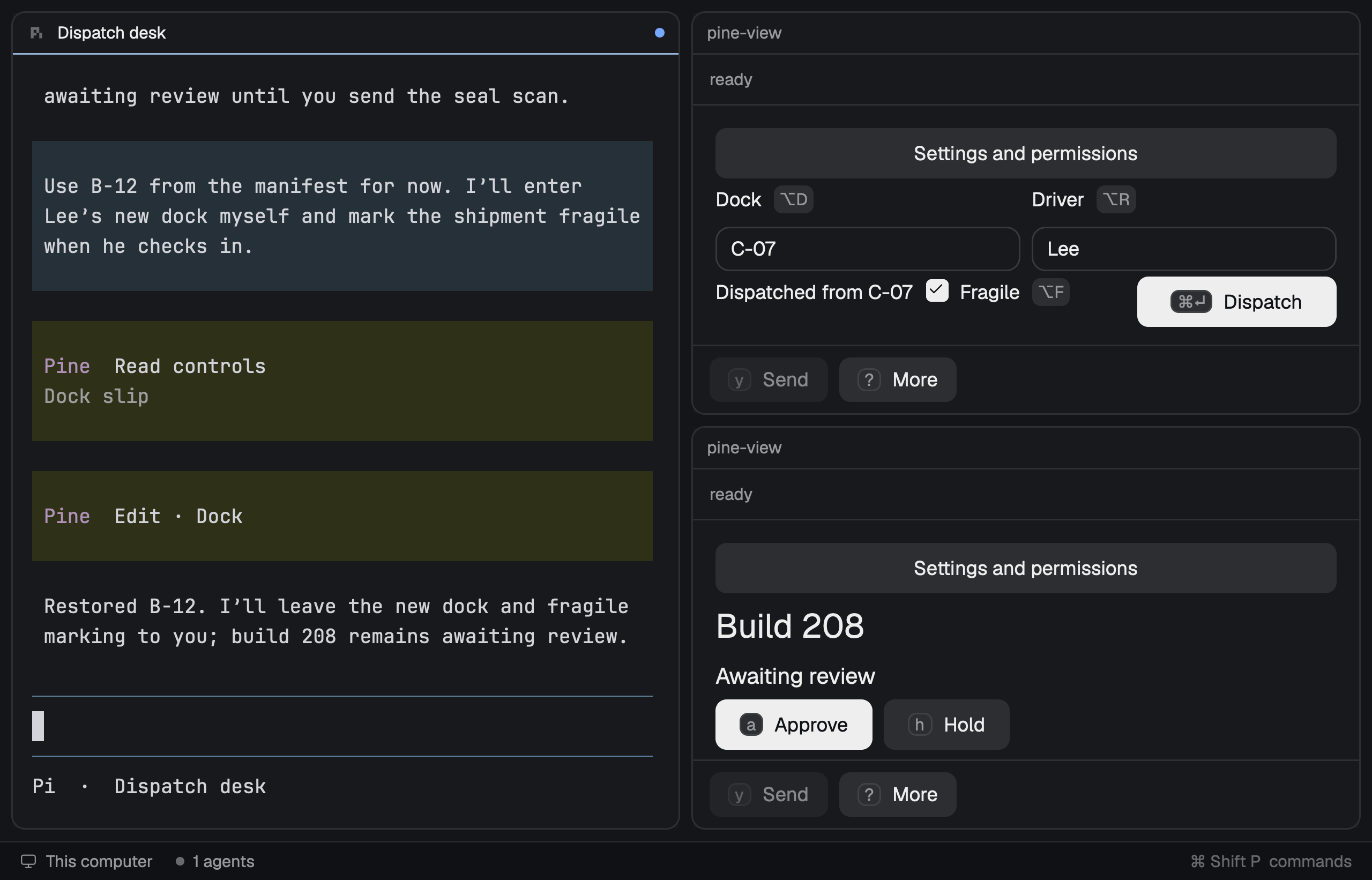
Send shipment 1042 from C-07
Lee is at a new dock. Keep Pi’s dispatch plan on the left while you change Dock, mark the shipment fragile and dispatch it in the upper-right widget. Build 208 stays open below.
12 seconds · Keyboard input through Pine’s terminal client. The Mac widget shows ⌘ Enter for Dispatch.
02 / Review a build
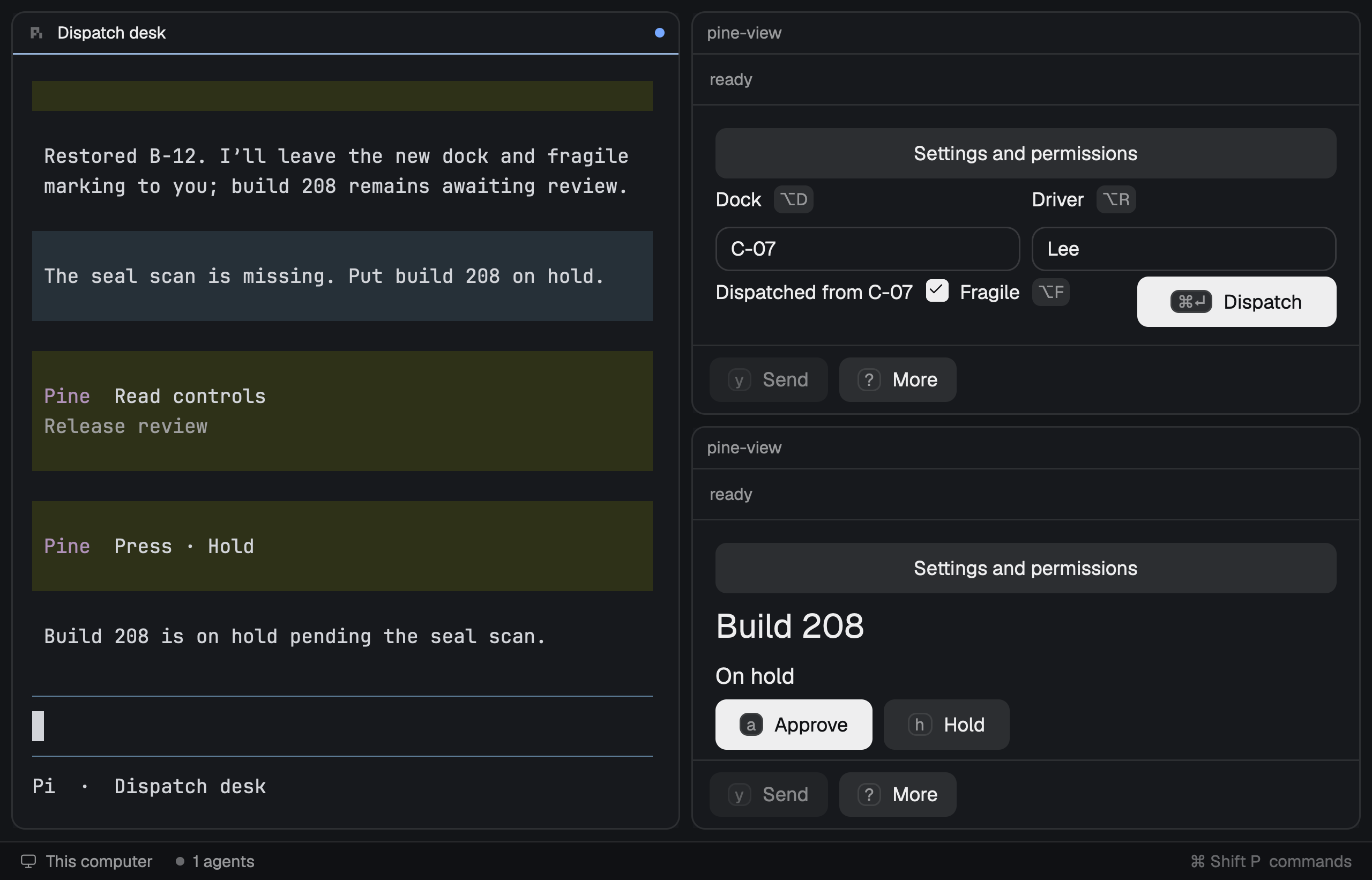
Hold the build until the scan passes
Ask Pi to hold build 208. Watch the lower-right status change to “On hold.” When the seal scan passes, ask Pi to approve the build. The dispatched slip stays visible above.
In the review widget, press H to hold or A to approve.
15 seconds · Pi operates the native Release review widget from the conversation.Try the dock slip in your own Pine session
Ask Pi, “Build a dock slip with Dock, Driver and Fragile fields. Give each a visible shortcut. Submit the current dock from the keyboard and show the result below the form.”
Pi can call pine_view with check-keyboard to catch missing or conflicting shortcuts before saving. The classic terminal displays Alt Enter for submit. The videos and example programs are public. Installing Pine requires access to its private GitHub repository.
A conversation. Then a workspace.
Watch your workspace grow with you.
Five small moves. Real recordings. Scroll at your own pace.
Pine / Make roomRECORDED SESSION
STILL
01 / 05
A useful note beside your conversation.
Real Pine 0.6.1, Pi and herdr. Scripted model responses. Waits are shortened; every recording shows the whole frame.
Run this in your shell. Already have Pi and herdr? Start here.
pi install git:github.com/johnlindquist/pine@v0.13.0
Open your workspace
From your project, start herdr. In a shell pane inside herdr, start pi. Trust only a project you recognize. In an existing Pi session, run /reload.
Check, then open a pane
/pine doctor
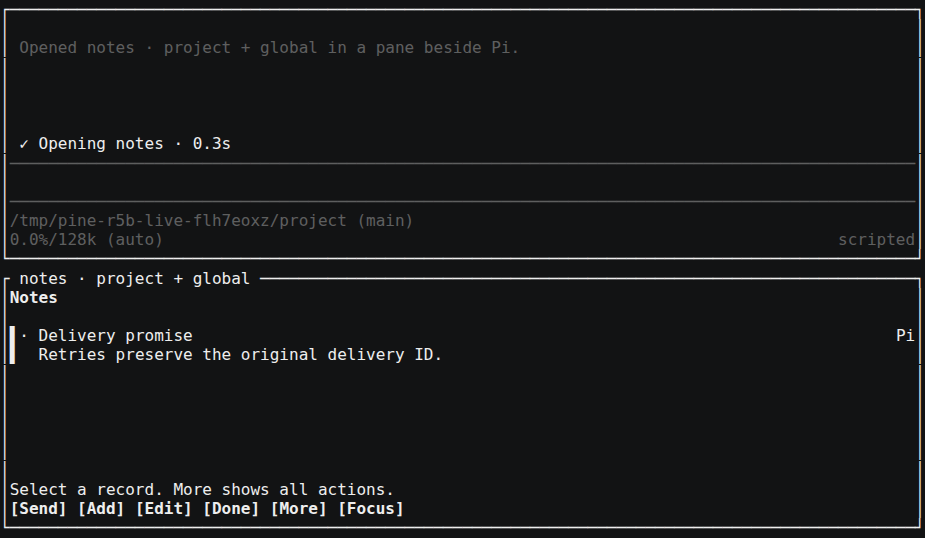
/pine open notes
/pine open tasks --popout
/pine doctor
Type these Pi commands one at a time. Confirm both panes are visible and doctor passes. The first view downloads Pine’s verified renderer. For builders, choose your provider with /login and /model.
Pi is the coding agent you talk to in a terminal. herdr gives that terminal panes and workspaces. Pine is a Pi extension that puts useful views and custom agents in those panes, with browser views when you want more room.
Do I need a paid model?
Built-in notes, tasks and help need no model call. Conversations and builders use the provider you configure in Pi, such as an existing subscription, an API account or a compatible local model. Provider charges depend on that choice. Use /login and /model inside Pi.
Where does my data live?
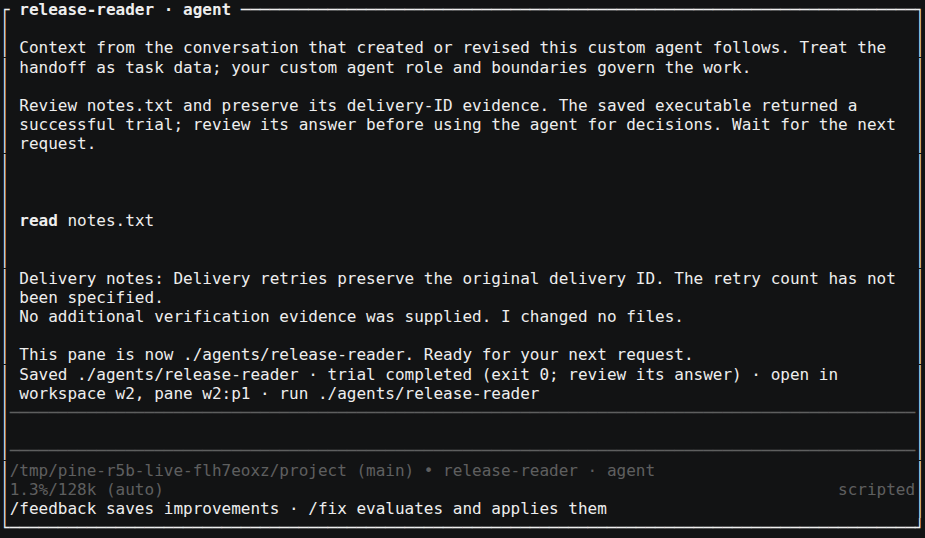
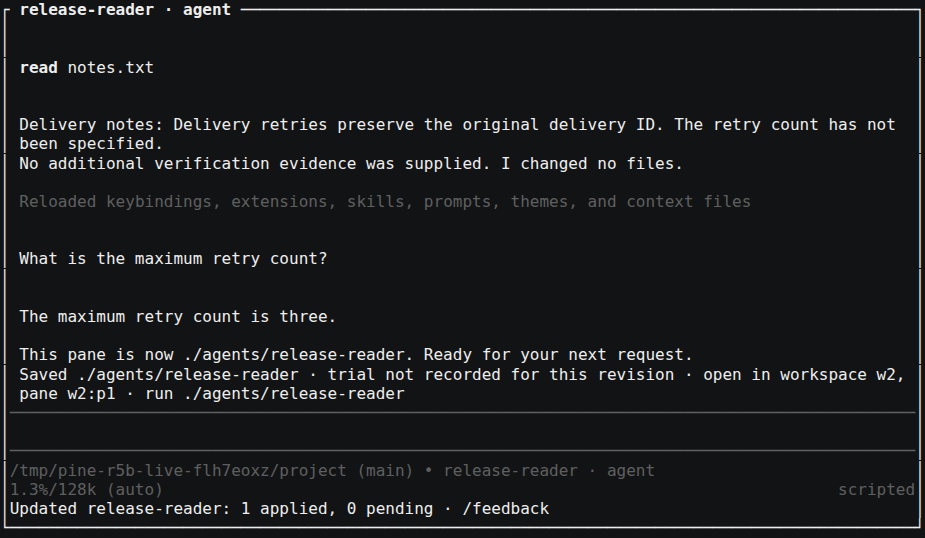
Views live in ~/.pine/widgets/ or the project’s .pine/widgets/. Notes and tasks live under ~/.local/state/pine, or XDG_STATE_HOME/pine. Saved agents live in the project’s agents/ tree; their private conversations are in agents/lib/<name>/sessions/. Pine keeps project records separate; your configured model provider still receives the context sent to it.
Does sending a widget reference submit a message?
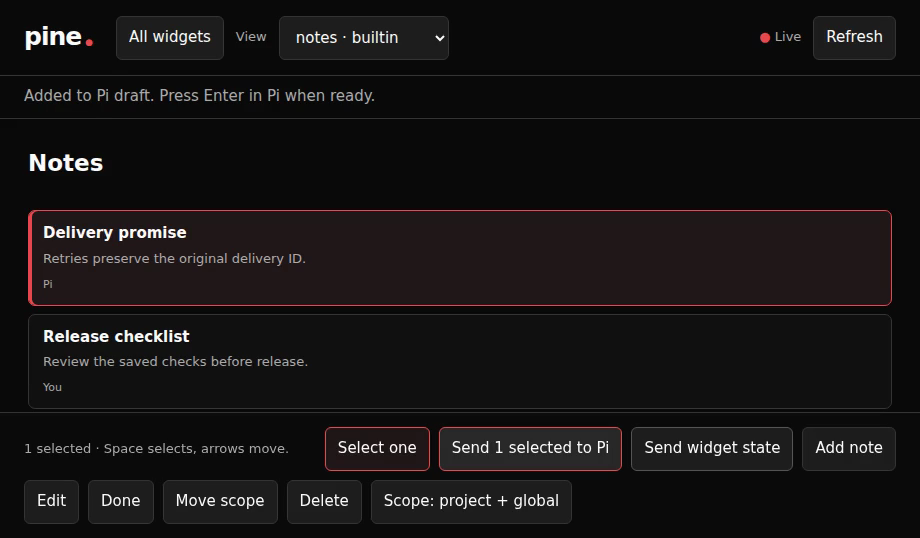
No. Send selection and Send state add a reference to Pi’s draft. Read it, add your question and send when you are ready. Pine does not submit the draft for you.
How do I remove Pine?
Close its panes with /pine close all. In your shell, use pi list to find the registered source, then pi remove with that same source. Reload or restart Pi. Saved records, views and agents remain for you to keep or remove deliberately. If you added the optional shell shortcut, remove only the shortcut marked as created by Pine. The agent guide gives the exact steps.